Field Super Intelligence for commercial HVAC

Know where every tech is.
Know what every job made.

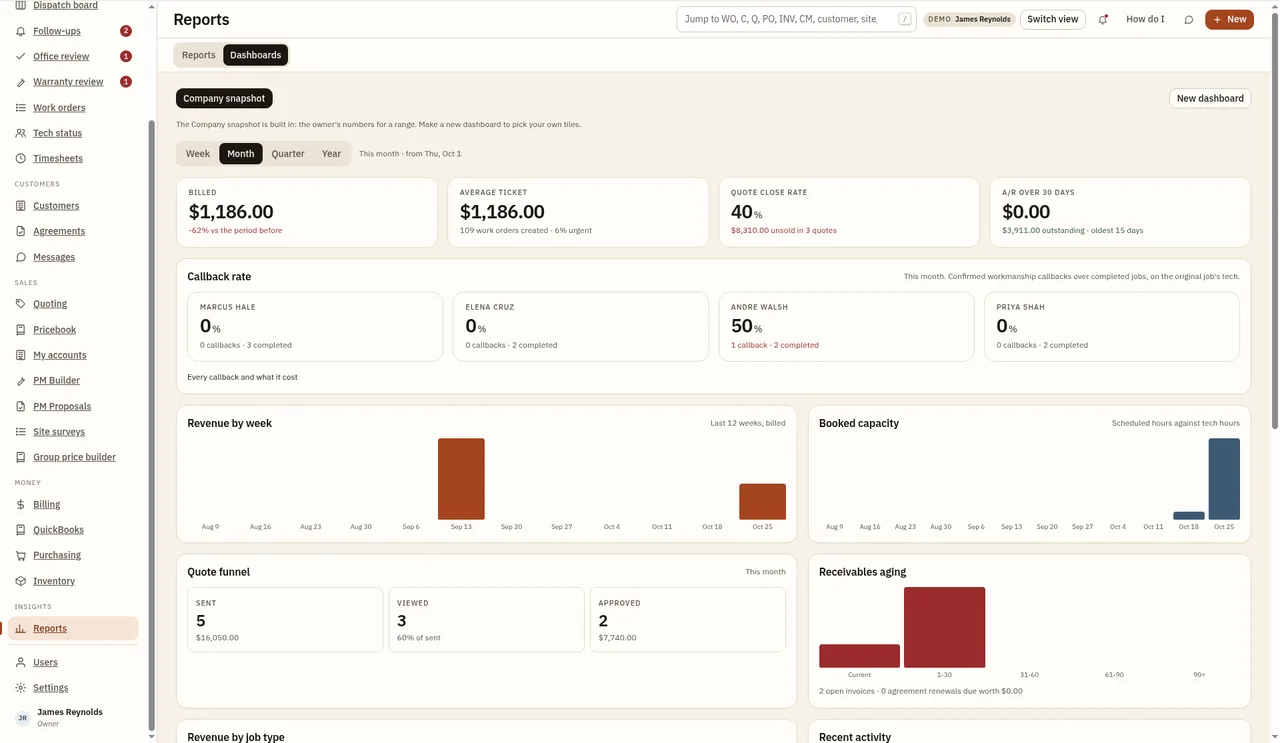
FieldSI runs the whole service call for commercial HVAC companies: dispatch, the tech's phone, quotes, close out, billing, maintenance agreements and truck stock. One system, set up the way a service shop actually works, with AI agents built in to keep track of it all. Powerful underneath, simple to run.

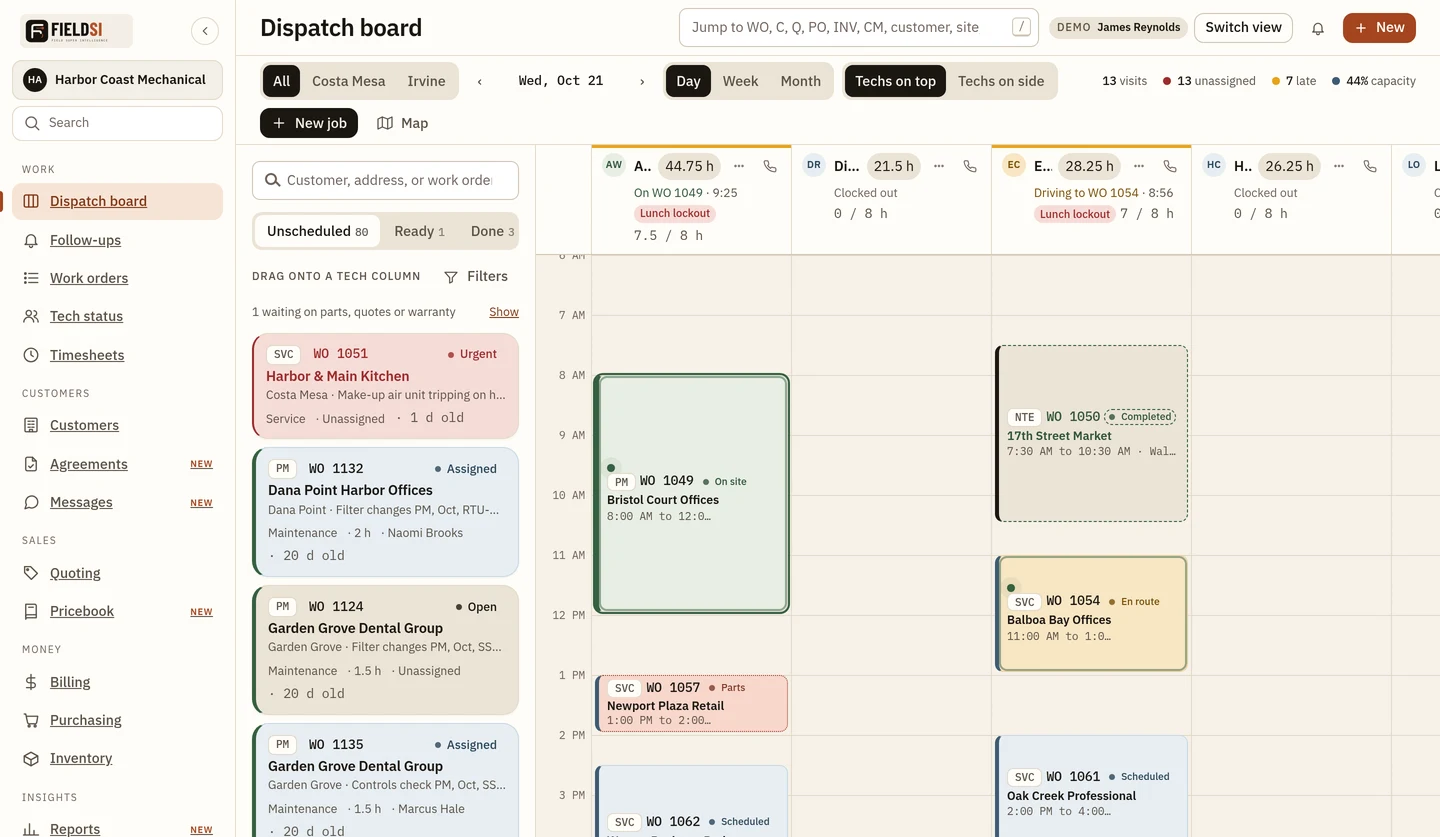
FieldSI dispatch board with a lane for every tech
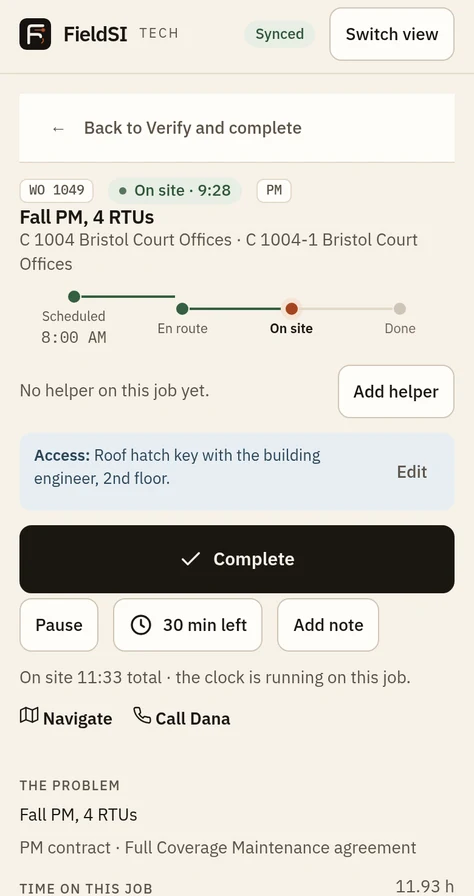
FieldSI tech phone app showing a work order

Built by an HVAC company for HVAC companies.

I'm JR Reynolds. I own and run an HVAC service business, and I built FieldSI to run it. The screens are built around how we dispatch, quote, close out and bill every day.

Dispatch board

The whole day on one board. Every answer at a glance.

Who is where, how full each day is, how much work each tech is carrying, and what is waiting for a slot. The board does the math so dispatch does not have to.

Close up of the FieldSI dispatch board with numbered callouts1234567
Sample company Harbor Coast Mechanical
  1. 1
    Live lane status

    Under each name in plain words: On WO 1050, Driving to WO 1059, Paused, Available, Clocked out, with time since the status changed.

  2. 2
    Booked hours against the shift

    Every lane shows hours booked of hours available, like 7.5 / 8 h. Time off comes out of the shift, and an Over chip appears when the day is overbooked.

  3. 3
    Lunch lockout

    After five hours worked with no meal logged, the lane flags Lunch lockout and the board refuses new work for that tech.

  4. 4
    Unscheduled, Ready, Done

    Three tabs with counts: jobs waiting for a slot, jobs the tech finished that are ready to close, and jobs completed that day.

  5. 5
    Waiting work kept aside

    Jobs waiting on parts, a quote or warranty fold away with a count, one tap to show them.

  6. 6
    Job type and priority on every card

    SVC, Q, PM and NTE tags, Urgent and Parts chips, and how many days old an unscheduled job is.

  7. 7
    Status colors on the timeline

    Blocks change color for scheduled, en route, on site, paused, waiting on parts, urgent and completed.

What you see at a glance

Backlog hours per tech

A badge on each lane shows that tech's open work in hours. It turns red when more is due this month than the tech has hours for.

The month in one sheet

Tap the badge for hours due this month, hours already on the board and hours available after time off, with a meter and the working day count.

Backlog by where it stands

Open jobs grouped as in progress, paused, scheduled, unscheduled, waiting on parts, waiting on customer, waiting on scheduling and return trips, each with a count and hours.

Jobs with no estimate

The backlog counts jobs that have no hours yet and marks each one, so nothing hides as zero.

Visits, unassigned, late, capacity

The toolbar sums what is on screen: visits, unassigned jobs, visits running late today, and booked hours as a percent of capacity.

Wrapping up, free about

When a tech taps 30 min left, the lane reads Wrapping up, free about 11:30 AM, and shows his next job with on time, early or late.

Nearby jobs for the next stop

Unscheduled jobs near a tech who is wrapping up rise to the top with the distance and when he will be free.

Overlap and reassign flags

Blocks that run into each other are flagged Overlap. Jobs on a tech who is marked out are flagged Reassign and gathered in one list.

Out all day or for a window

Mark a tech out sick, PTO, training or an appointment. The lane reads Off today or Out 8:00 to 10:00 AM and refuses bookings in that time.

Lunches and breaks on the lane

Planned lunch, lunch and break blocks sit on the timeline, and dispatch cannot book over them.

Helpers and crews

A plus count on a job shows its helpers. Each helper has their own window, like 4 of 8 h, and moves with the lead.

Week and month at a glance

The week shows each tech's booked hours against the week. The month shows assigned and open jobs, returns, parts and a load bar that turns hot over capacity.

Built for moving fast

Drag, drop, done

  • Drag a job from the queue onto a tech and a time to schedule it.
  • Drag again to move it. Helpers shift with the lead.
  • The drop preview names the problem first: out, lunch, or an overlap.
  • Jobs en route or on site are locked so a live clock never moves.
  • Undo puts the whole crew back.
  • Click empty time on a lane to start a new job there.
  • Day, week and month views, techs on top or on the side, a map of trucks reporting, team and job filters.

Field Super Intelligence

The SI in FieldSI. Agents that keep track so you don't have to.

FieldSI is built so AI agents work from the same live data your office does: every job, every tech's hours, every agreement. Some of it runs today. More is on the way, and we label it honestly.

Live in the app today In development being built Coming on the roadmap
Live

Backlog API ready for agents

The same backlog numbers the board shows, per tech: open jobs, hours, hours due this month and hours available. One calculation that people and agents read alike.

Live

Receipt and document reading

Snap a receipt, vendor quote or invoice and FieldSI reads it into PO lines, right on the phone.

In development

Close out summary

A summary of the work written at close out from what the tech did or dictated, editable before it goes to the office.

Coming

AI troubleshooting assistant

Help for techs in the field on the equipment in front of them, with the unit's model, serial and history at hand.

Coming

Work order and hours agent

Watches open work orders and hours, and points out jobs with no estimate, hours running past the budget and tickets missing a work description.

Coming

Backlog and dispatch insights

Reads the backlog API to spot techs with more due than the month holds, unassigned work aging in the queue and open time worth filling.

Coming

PM tracking agent

Keeps an eye on every maintenance agreement so PM visits get scheduled, done and billed on time.

Coming

Findings to quotes

Turns a tech's findings and photos into a draft repair quote for the office to price and send.

Simple by design

Super intelligent underneath. Simple on top.

No consultants, no months of setup. FieldSI was built by a working HVAC shop, so the screens follow the way you already run the day.

  1. 1Live

    Add your people

    Create office users and techs with a role, a team and shift hours. Roles decide who sees pricing and billing.

  2. 2Live

    Load customers, sites and equipment

    Enter customers with their sites and the units on each site, model and serial included. Bulk import from a spreadsheet is planned.

  3. 3Live

    Set your pricebook and agreements

    Add your rates and parts, then the maintenance agreements you sell, from PM to Full Coverage.

  4. 4Coming

    Connect accounting

    Link your accounting system through one integration layer. QuickBooks is first up.

  5. 5Live

    Go

    Techs open FieldSI on the phone they already carry. Dispatch drags the first job onto the board.

For the office

One board, one search

Drag jobs to schedule. Press Ctrl+K to jump to any work order, customer, quote, PO, invoice, phone number or serial.

For techs

Only what the job needs

Their own jobs, big buttons for En route, On site and Pause, navigation and a call button. No billing, no pricing.

Work orders and findings

A real ticket for every call

  • Every job carries the problem, the equipment, the budget and the history in one place.
  • Techs log findings with photos from the field, so the office sees what the tech saw.
  • A complete flow that requires a work description before the job closes.
  • Verify and close out: the office checks the tech's work before it moves on.
Work order screen

Quotes with options

Repair or replace, one quote

  • Each option has its own estimate.
  • Cost plus margin with live price and profit as you build it.
  • Attach vendor quotes right to the quote.
  • A professional print and PDF the customer can sign.
  • Online customer approval with Approve and Reject, plus follow ups so quotes don't go cold.
Quote builder with options
Printed quote the customer can sign

Jump box

Find anything in a keystroke

Press Ctrl+K and type any WO, customer, quote, PO or invoice number, a phone number or a serial. You go straight there.

Jump box search

Customer portal

Customers see their own work

Your customers open their quote online, pick an option and tap Approve or Reject. No phone tag with the office.

Security

The right eyes on the right numbers

Techs only see their own jobs. Billing and pricing stay with the office.

Close out and billing

From verified hours to a clean invoice. See the profit before you send it.

Billing starts from what the tech verified on site. The office shapes the customer copy line by line, and the numbers behind it stay accurate.

Review and bill drawer with numbered callouts12345678910
Sample company Harbor Coast Mechanical
  1. 1
    Customer copy one tab away

    Lines for the office, Invoice for exactly what the customer will see.

  2. 2
    The problem, editable

    The original call is on the invoice, and the office can reword it before billing.

  3. 3
    Work performed from close out

    The tech's conclusion flows in as the description of work, ready to polish.

  4. 4
    Save it back

    One check writes the cleaned up problem and work performed back to the work order.

  5. 5
    Labor by visit and tech, or one line

    Itemize every visit and tech, or fold labor into one line with travel included.

  6. 6
    Material by part, or one line

    Show each part, or a single material line.

  7. 7
    Hide the hourly rate

    One check keeps the rate off the customer invoice while the hours and dollars stay right.

  8. 8
    Every line editable

    Description, hours and quantity, and rate on every labor and material line, with reset and delete.

  9. 9
    Rates from your tables

    Labor bills at the class rate, standard or contract, and material sells through your margin bands.

  10. 10
    Bill in one tap

    The total rides on the button, with a Not yet option to park the job.

What billing handles for you

Verified hours flow in

Billing charges the time lines the tech or office verified at close out, so nobody retypes a timesheet.

Overtime handled

Hours that ran into overtime or double time bill and cost at those rates. Quoted and PM jobs keep their fixed price.

Profit before you bill

An office only summary shows actual cost, sale price, profit and margin, with labor at each tech's cost rate and material at real cost.

Budget against actual

Jobs from an approved quote show labor, material and use tax budgets beside what was really spent.

Open POs caught

An issued or partly received PO is flagged on the bill. Receive it now, or add the lines anyway after a confirm.

The right invoice for the job

Quoted jobs show only the scope and price. Time and material is itemized. Not to exceed shows the cap and asks before billing over it.

Sales tax from the site

Each site's tax rate is looked up from its address, frozen on the invoice, and reported by jurisdiction with a CSV.

Credit memos done right

Credit any part of a billed invoice or add a goodwill line. Tax follows the invoice rate, and the memo is numbered and previewed before it is sent.

Bill and send

Create the invoice and email it in one step, with payment terms and the portal pay link when the customer has one.

Contracts billed on the 1st

Pre billed agreements make one draft invoice per contract each month, one line per visit at its visit price.

Return visits update the bill

A return trip closed after the invoice exists updates that invoice instead of starting a second one.

Cost and margin stay private

Cost, margin and use tax never reach the customer invoice, print, PDF or portal.

Tech app purchasing and truck stock

POs from the field. Parts that always land on the bill.

Techs buy parts, snap the receipt and pull from their van without calling the office. Every part ends up on the right job, at real cost.

Issue PO sheet on the tech phone1234567
Complete job screen with the parts gate8910
  1. 1
    Ships to this job

    Issue PO from the job and the work order, site and tech are filled in for you.

  2. 2
    Take a picture of the receipt

    FieldSI reads it and fills in the vendor and the lines for the tech to check.

  3. 3
    Or attach a file

    A PDF of a receipt, vendor quote or invoice works too, and stays attached to the PO.

  4. 4
    Packing slip photo

    Snap the slip so the office can match it. Received POs without a slip are tagged.

  5. 5
    Vendor from your list

    Pick a vendor or type a new name.

  6. 6
    Lines with part, quantity and cost

    Edit what was read, add lines, remove mistakes.

  7. 7
    Save, or Save and receive

    Save issues the PO. Save and receive issues it and receives every line in one tap, with the total on the button.

  8. 8
    Parts gate on complete

    A job cannot close while a PO on it is not received, has no cost or adds up to nothing.

  9. 9
    Material from truck

    Parts used from the van are listed with their cost, so the tech sees what Billing will charge.

  10. 10
    Every hour confirmed

    Time lines are confirmed before completion, and an unfinished line blocks it.

Truck stock and parts at a glance

Use from inventory

Pull parts from the van or the shop on the phone. They come out of that warehouse and land on the bill. Remove a mistake and it goes back into stock.

Every van is a warehouse

Each truck has its own stock with minimums and a target, and shows its value on board and when it was last counted.

Cycle counts from the phone

Techs count their van and the variances are adjusted on save.

Van replenishment

The office gets a morning transfer list to bring each van back up to its minimums.

Tomorrow's parts check

Parts on tomorrow's quoted jobs are checked against stock ahead of time.

Waiting on parts, handled

Parts not here yet? The tech taps Can't receive now with a reason: backordered, vendor delivering direct, returned or other. His time is saved and the job waits on parts.

Billing never sees a half job

A job waiting on parts stays out of Billing until every PO is received with a cost or cancelled.

Purchasing in the office

Receive to inventory, match vendor invoices, email POs, and find any PO by number, vendor, item or job.

Maintenance agreements

PM contracts that run themselves. Visits made, billed and tracked.

Set up the contract once. FieldSI makes the PM work orders on schedule, bills them the way you sold them, and shows what each contract really earns.

Agreements list with numbered callouts12345678910
Sample company Harbor Coast Mechanical
  1. 1
    Views that matter

    Active, Renewals due, Visits to schedule and Bills due, one tap each.

  2. 2
    Release next month's PMs

    Create a season's visits across agreements from one button.

  3. 3
    Annual value

    Recurring revenue across active agreements.

  4. 4
    Renewals coming

    Agreements renewing in the next 60 days, with their value.

  5. 5
    Contract bills due

    Bills waiting to be created, with a link straight to Billing.

  6. 6
    Season progress

    How far the current season's PM visits have come.

  7. 7
    Every contract type

    Preventative Maintenance, Full Coverage, Partial Coverage, Labor Only, Sub and Controls.

  8. 8
    Units and visits a year

    How many units each agreement covers and how many visits it promises.

  9. 9
    Next visit status

    The next visit with its season, whether it is scheduled, and when it is due.

  10. 10
    How it bills

    On demand, monthly, quarterly, annual, per visit, or mixed, with how many bills are due.

Everything a PM program needs

Schedule groups

Group units by the months they are serviced, with hours, techs, skill level, a default tech and a visit price per group.

Suggest groups from equipment

FieldSI builds the groups from the units on the site, by type.

Per unit coverage

Each unit is Covered or PM only, defaulted from the contract type, with X of Y units covered at a glance.

Covered or billable on service calls

A service call at a contract site shows which units are covered and which are billable.

The contract summary

Annual value, visits and PM hours a year, the breakdown per group and a month by month billing preview, always in view.

PMs made on the 1st

On the 1st of each month FieldSI makes one PM work order per group that is due, unscheduled in the backlog, never twice.

Release early

Release next month's PMs now, all of them or filtered by tech, area or customer. The preview shows the count and hours, and the 1st skips what was released.

Pre billed on the 1st

One draft invoice per contract each month, one line per visit, no sales tax. The PM work order then closes at $0 and carries its line as revenue.

Or bill on demand

Bill each PM at its group's visit price when it is verified complete.

Cancellation with notice

Set the notice days, 30 by default. Pre billed visits not completed by the day service ends are credited, completed ones are kept.

Findings with photos

A checklist item marked Flagged or Failed carries the tech's note and photos. Failed needs both. Customers see findings on the PM report and the portal.

Findings to quotes

The office turns a finding into a quote with the photos attached and the unit linked. It stays open on the unit until quoted, declined or fixed.

Contract profit

What the contract billed against labor and material cost, with profit and margin, and a flag for jobs whose cost is not known yet.

Terms and renewals

Term dates, auto renew, response promise and billed so far on every agreement.

PM tasks enforced

Closing a PM with open checklist tasks asks for a reason.

Visits ready to book

Generated PMs land in the dispatch backlog with their hours, so they count in every tech's month.

Integrations made easy

Built system neutral. Bring your own ERP.

FieldSI talks to accounting through one integration layer, not a pile of one off connectors. Each system plugs in as an adapter, so adding the next one does not change how you work.

  • One accounting layer, so every system plugs in the same way.
  • QuickBooks is the first adapter, in development now.
  • Designed for more ERP and accounting systems, possibly through a unified API.
Accounting layer
First upQuickBooksThe first adapter, in development.
PlannedSage Intacct
PlannedXero
PlannedNetSuite
PlannedAcumatica
PlannedFoundation

How it works

One system from the call to the paid invoice

For the office

  1. Take the call. Create the work order and drop it in the unscheduled queue.
  2. Dispatch. Drag it onto a tech's lane and watch live status through the day.
  3. Quote. Build repair and replace options and send for online approval.
  4. Verify and bill. Check the tech's work, review job costing, send the invoice.

For the techs

  1. See the day. Only his own jobs, with navigation and a call button.
  2. Work the job. En route, on site, findings with photos and the job budget.
  3. Buy parts. Snap the receipt for a PO from the field.
  4. Close out. Write the work description and tap 30 min left so dispatch knows.
Tech phone app work order

Tech phone app

Everything the tech needs, nothing he doesn't

  • Job budget card: hours budgeted, used and left, plus material cost. Never the sell price.
  • Timesheet right on the phone.
  • PO from the field: snap the receipt and FieldSI reads it.
  • Findings with photos so the office gets the full picture.
  • Complete flow that requires a work description before the job closes, so the office gets a real ticket.
Locked down by role. Techs only see their own jobs. No billing, no pricing.

Questions

Who is FieldSI for?

Commercial HVAC service companies that dispatch techs, quote repairs, run maintenance agreements and bill for service.

Do my techs need a special device?

No. The tech app runs in the browser on the phone they already carry.

Can techs see pricing or billing?

No. Access is locked down by role. Techs see their own jobs and material cost, never the sell price.

Does it connect to QuickBooks?

QuickBooks sync is on the way. Ask us about it on a walkthrough.

How do I see it?

Request a demo and JR will walk you through dispatch, a quote and a close out the way his own shop runs them.

See Field Super Intelligence on your jobs.

Call for a walkthrough. JR will show you dispatch, a quote and a close out the way we run them at our own shop.